Getting Started
Crush is a terminal based coding agent which basically means that it lets you connect LLMs to your files and computer and gives them the power to do stuff!
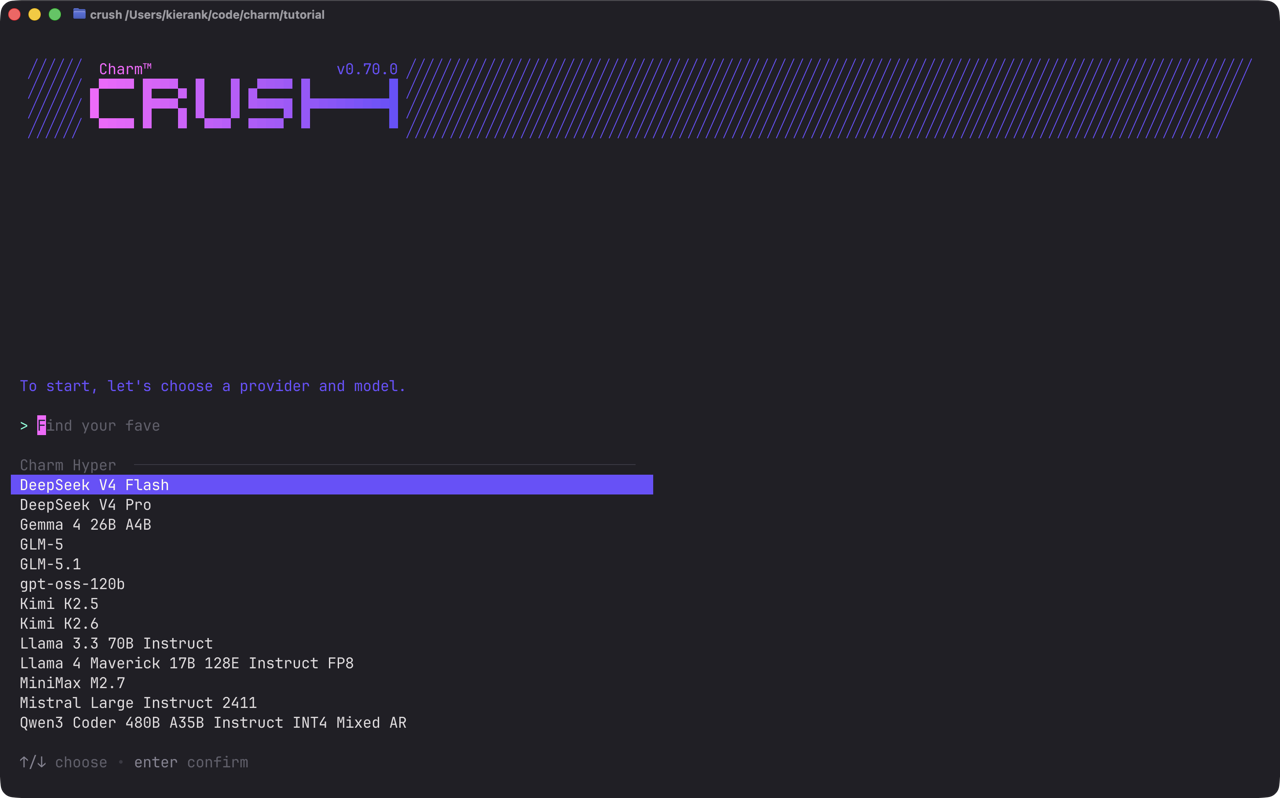
First off you need to install Crush then launch it with crush. You will see a screen like the one below where you get to pick what provider you would like to use. We will be using Hyper for this tutorial as you get free credits but feel free to use whatever you have access to! Select the model you would like by searching or using the arrow keys and hit enter. For Hyper you can use sign in with the browser but many other providers will just use an API key which you can paste in.
Now just follow the prompts to click enter to open the browser and then paste the code from crush into Hyper. You will now be in the main interface of crush! Lets do a quick tour of the ui first and then try and build our first project! At the bottom you have your repl style prompt box. You can type messages to crush in this box and if you would like to edit a longer message in your favorite editor you can press ctrl+o and it will open the message in your $EDITOR of choice.
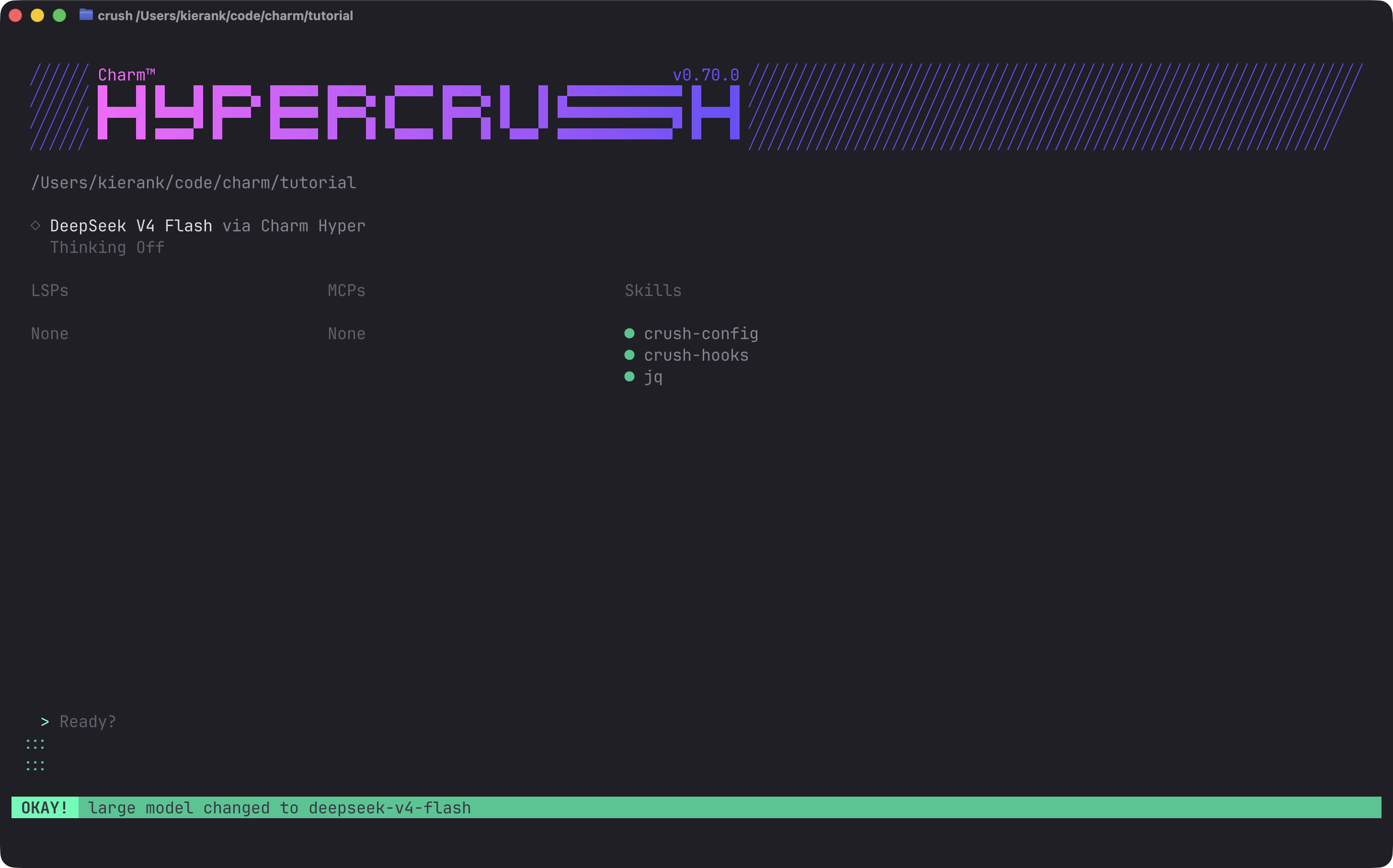
If you press ctrl+p you can open the command palate and change sessions or switch to a different model. Hit esc to exit the modal and lets try using Crush now! Go ahead and give it a prompt for something you would like to have it build. I'm going to have it build a small CLI that uses Lip Gloss and gives you random facts about pigeons.
Let's design a small CLI in Go with lipgloss that has some neat facts
on pigeons and then renders a random one whenever the CLI is ran
What you probably pretty quickly noticed was a permission popup! By default Crush can only read your files and won't be able to run any installation or edit commands without your consent. You can switch between the options with the arrow keys and either approve the command for the rest of the session or just once or deny it. In this case lets approve it and let it keep going.
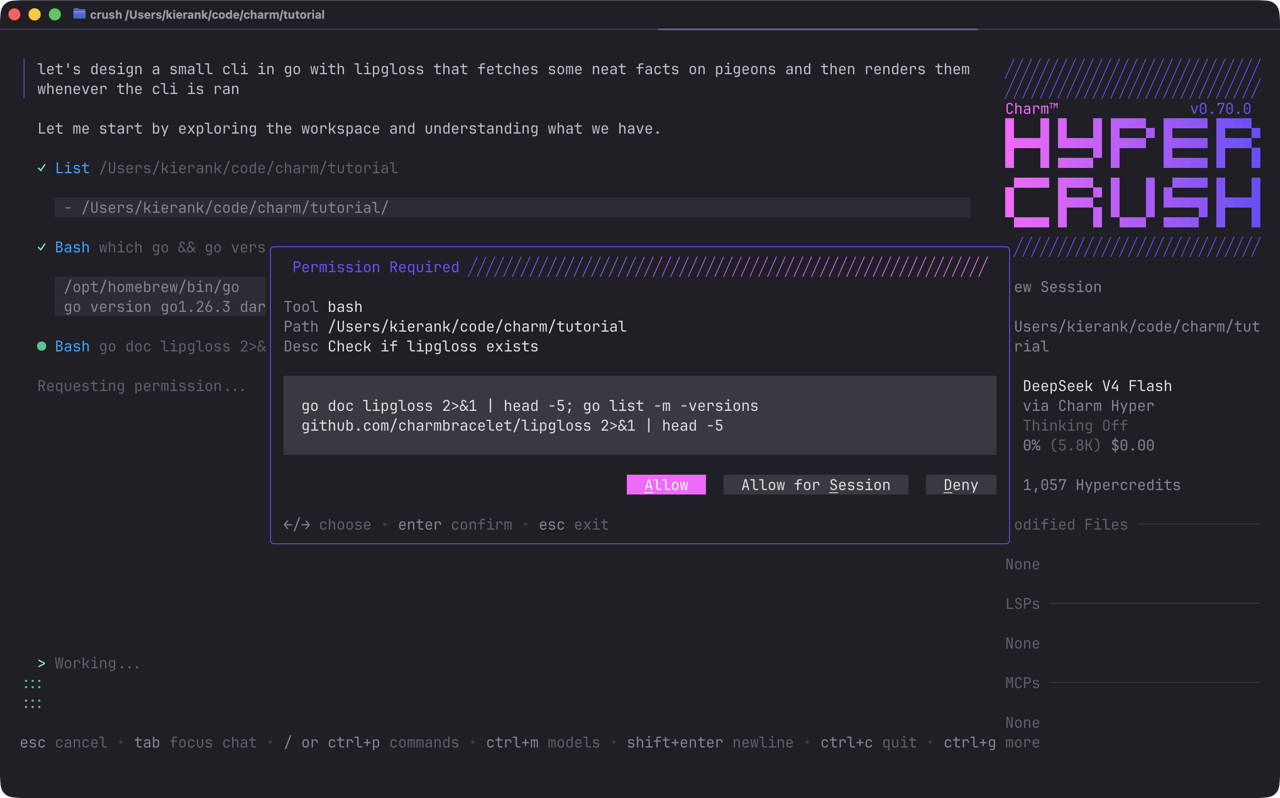
All right now lets explore a fun and yet also more dangerous side of agents. If you press escape twice you can stop crush in whatever its doing. Now press ctrl+p and search for yolo. By selecting YOLO mode crush is now allowed to edit and run any files it wants except for a list of banned commands maintained in charmbracelet/crush:internal/agent/tools/safe.go. As always with LLMs please do be careful with this. LLMs still tend to hallucinate and can do dangerous things if you don't watch them. If you are willing to accept the risk then feel free to try it out at this point but if that makes you a bit uncomfortable then keep reviewing Crush's permission popups. To start Crush back up again since we canceled it earlier just send another message such as lets keep going or really whatever you want. If you did enable YOLO mode you will notice that the green prompt at the bottom of the screen should have turned yellow to let you know it is in YOLO mode.

Let's also try queuing a message! I want my CLI to use the color #0BC161 (a gorgeous shade of green) from that pigeon above so simply just write out your message and then hit enter! Your message will then go into a queue that will be sent to Crush whenever it becomes free next.
Can you make sure you use some gorgeous #0BC161 in the CLI?
It matches the plumage of some pigeons :)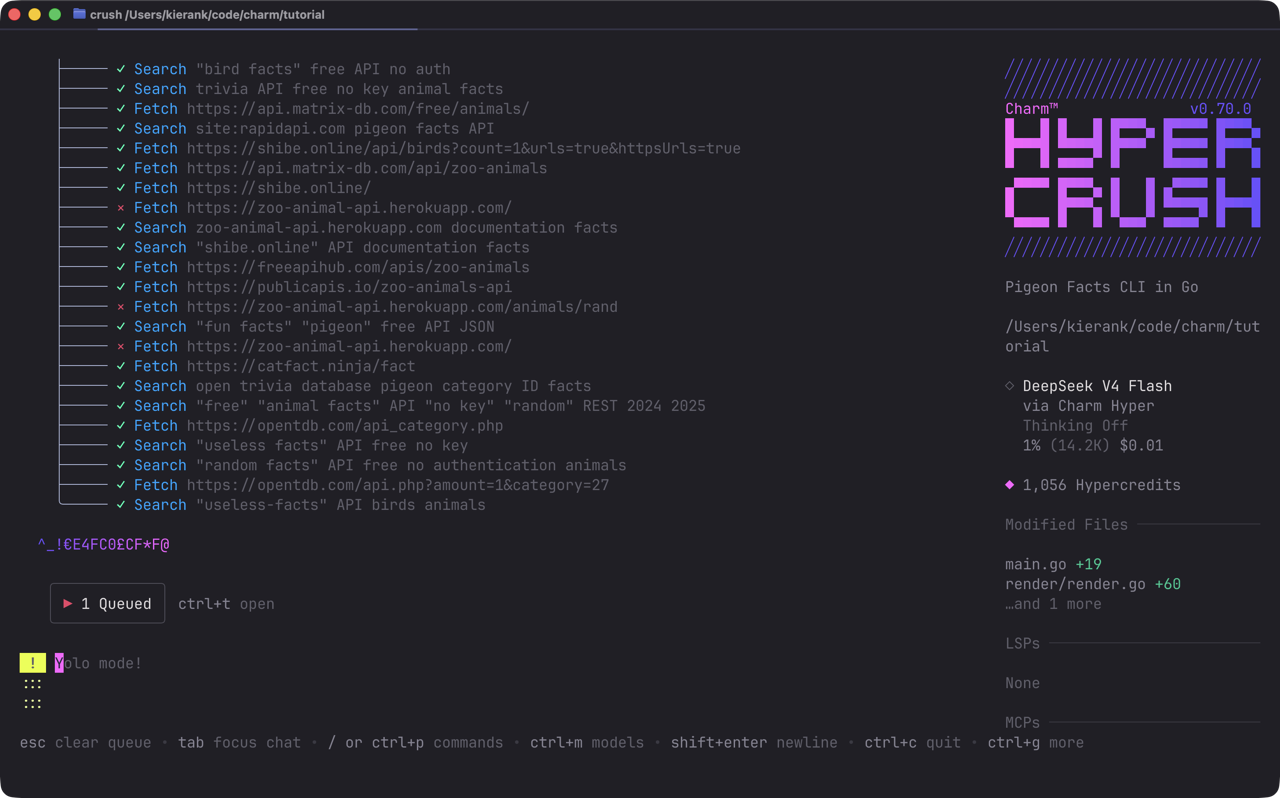
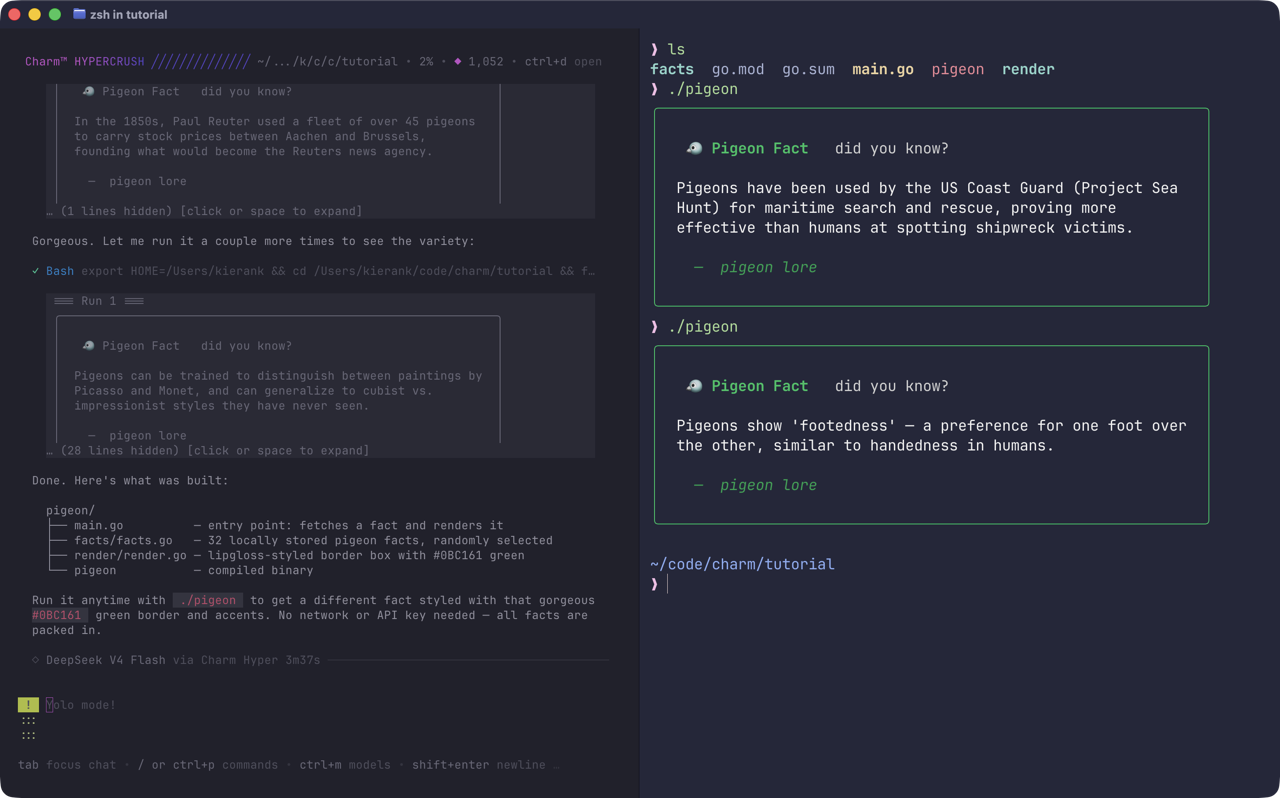
And voila! Now we have a Lip Gloss based CLI that gives you random pishgeon facts! You can do quite a lot more with Crush such as setting up custom configs, providers, and LSPs so I'll leave you free to go explore!